Widget Studio
Make a widget in the desktop app without writing code, or from a sentence.
Widget Studio makes widgets without code, in the desktop app, with the phone's own cards previewing every size as you go.
Where to find it
Widget Studio is a page inside the ShiftPane desktop app on your PC, not a website and not something on the phone.
Open the ShiftPane desktop app
Use the window on your PC, the one with the QR code. If it's closed, open ShiftPane from the Start menu.
Click Widgets in the left sidebar
It's the third item, under Devices and Phone layout. The page lists every widget you can add.
Find the Make a widget card and click Open Widget Studio
The card has a dashed border and sits among the widgets, so scroll down the page a little. It only shows on the All and Installed tabs at the top. If you're on Time, PC or Media, switch back to All.
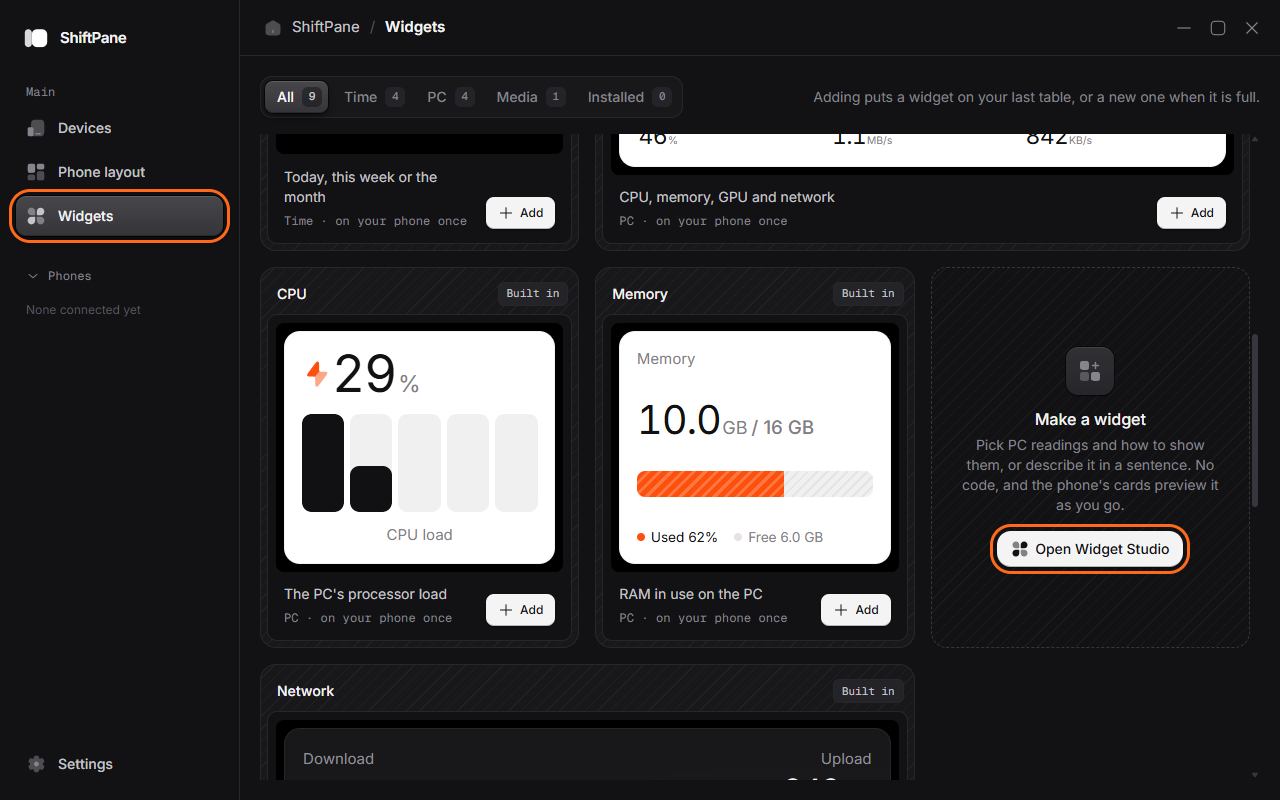
The Widgets page. The circled sidebar item and button are the way in.
Studio opens in place of the list. The Widgets button at its top left takes you back.
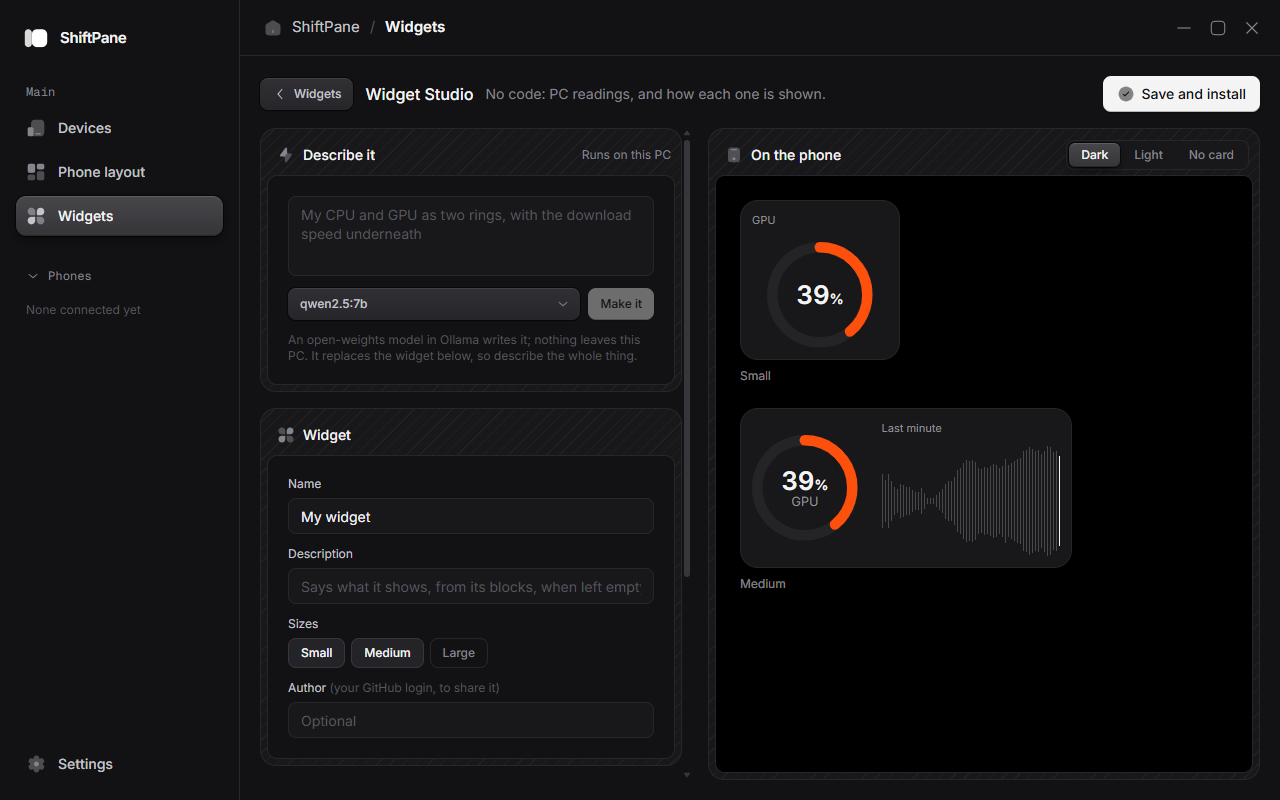
Widget Studio. Describe a widget or fill in the form on the left, and the phone's cards preview it on the right.
Make one
- Name it and pick its sizes: small is one cell, medium two across, large two by two.
- Add blocks, up to four. Each block is one reading from your PC, shown one way: the GPU's load as a ring, the download speed as bars over the last minute, the track that's playing as text. The first block is the biggest; medium and large cards fit the rest beside or under it.
- Pick colors for rings, lines and bars, or leave them in the card's own ink.
The readings are the system sources: CPU, GPU and memory load, memory used, download and upload speed, the main drive, battery, volume, CPU and GPU temperature, time since start, what's playing, the busiest programs and the app in front. Rings and meters show a percent; bars and lines need a reading with a minute of history.
Save and install writes an ordinary widget to Documents\ShiftPane widgets: a manifest, a view, a README and an MIT license, with no code. The app shows what it can read before installing it, like any widget. Edit in Studio in its settings opens it again, and saving installs the next version.
Describe it instead
Type what you want, such as "my CPU and GPU as two rings, with the network underneath", and press Make it. A language model writes the widget's blocks, and they open in Studio to adjust.
The model runs on your PC, in Ollama, so nothing you type leaves it. It's an open-weights model you pick; ShiftPane asks for the best one it knows from the ones you have. We suggest Qwen3 4B (Apache 2.0, about 2.5 GB), which runs well without a graphics card:
ollama pull qwen3:4bThe first answer loads the model, which can take a minute on a CPU; after that, a widget takes a few seconds. Whatever the model writes is checked against the same short list of readings and ways to show them, and drawn by ShiftPane's own components, so nothing it writes runs.
Share it
A Studio widget is a folder like any other: turn on Developer mode to Share to the marketplace, or npx shiftpane-widget publish in its folder. Put your GitHub login in Studio's Author field first, since the gallery takes a widget only from its author.