Pair a phone
Scan the code, accept the certificate once, and pick the right network.
Your phone connects to the PC over your Wi-Fi, and nothing goes through the internet. Pairing takes one scan, and a paired phone stays paired.
Pair with the QR code
Open the Devices page
It's the first page of the desktop app. It shows a QR code and, under it, a six-digit code.
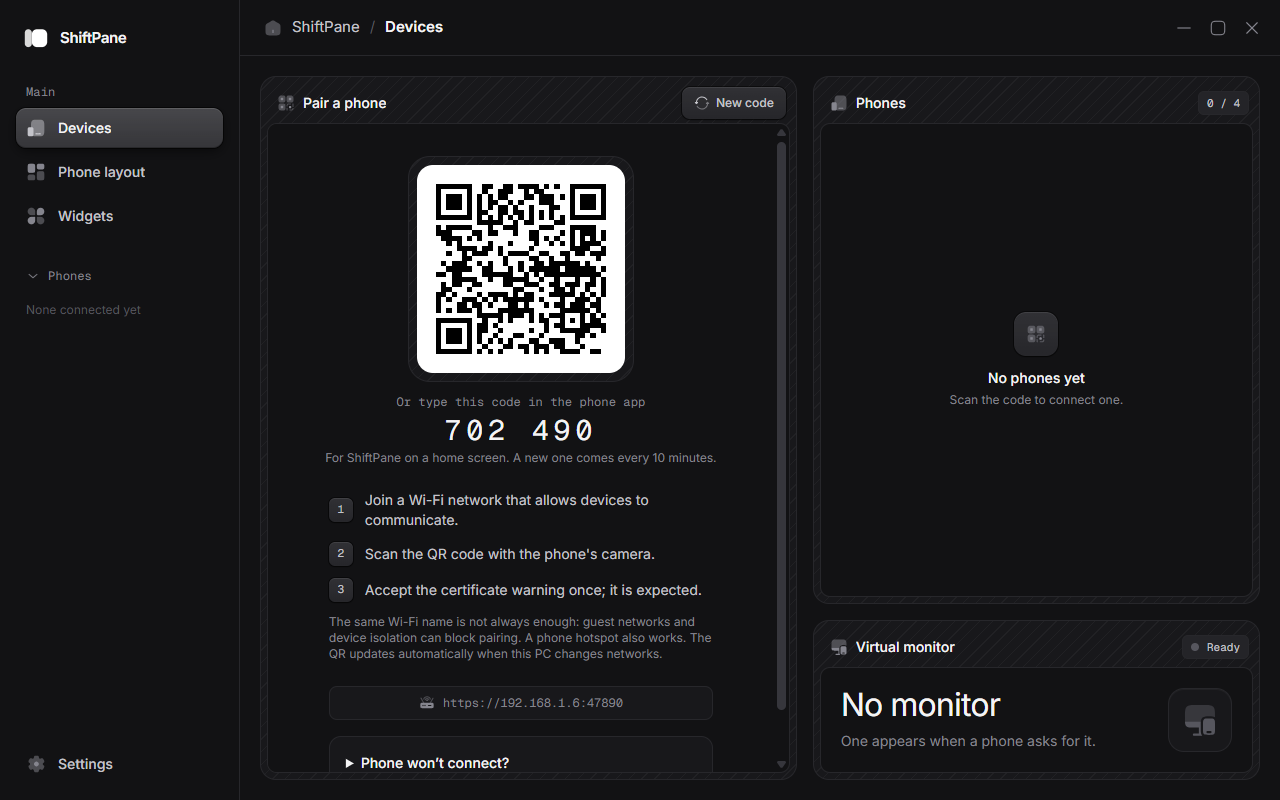
The Devices page. Scan the QR code, or type the six-digit code into a phone app on the home screen.
Scan it with the phone's camera
The phone has to be on the same Wi-Fi as the PC. The camera opens the link in the phone's browser.
Accept the certificate, once
The PC serves the phone app over HTTPS with a certificate it made itself, so the browser warns you the first time. Accept it, and the phone shows Connected to your PC's name.
The phone then keeps a key for this PC. It reconnects on its own, across reloads and PC restarts, until you forget it on the Devices page.
On an iPhone's home screen
You can add the phone app to the home screen for a full-screen app. An app added that way doesn't share Safari's storage, so it never sees the QR code's link. Instead it asks for the six-digit code from the Devices page.
Each code pairs one phone and changes every ten minutes. After five wrong tries the PC stops taking codes until the next one, or until you press New code.
Several network adapters
If the PC has more than one network adapter (a VPN, WSL or VirtualBox adds one), the QR code may point at the wrong one. Pick the adapter your phone is on from the Network menu under the QR code, and scan again.
The address stays the same
A home screen app is tied to one address. The PC tries the port it used last, then ports 47820 to 47829, before any free port, so a phone keeps finding it.
If the phone can't connect at all, see Troubleshooting, which has Windows 11 settings pictures for the usual causes.