Troubleshooting
A phone that won’t connect, a monitor that won’t appear, and the usual fixes.
The phone can't connect
Work down this list. Most connection problems are one of the first three, and the Phone won't connect? box on the Devices page can tell you whether the phone is reaching the PC at all.
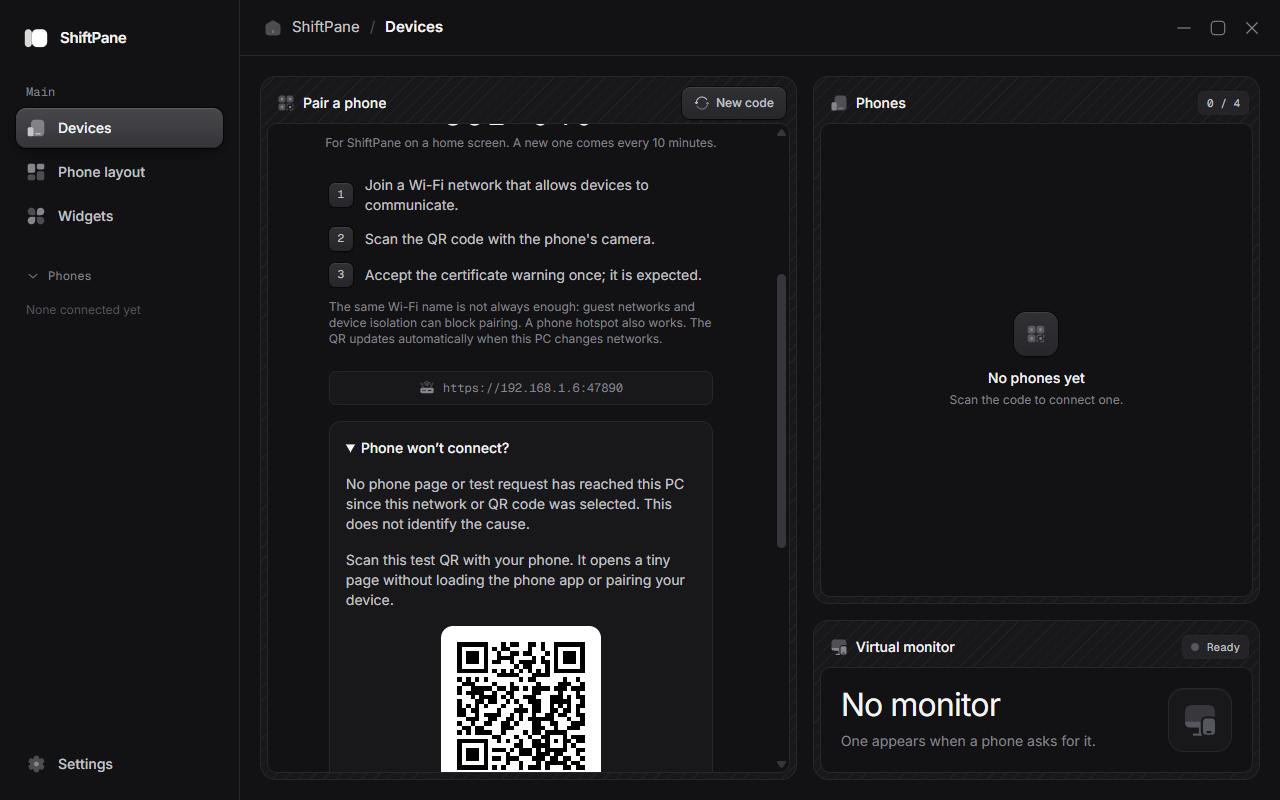
Open Phone won't connect? under the QR code, then scan its test QR. It opens a tiny page without pairing, so if the page loads, the network is fine.
1. Same Wi-Fi
The phone and the PC have to be on the same network. A guest network, or a router with "AP isolation" or "client isolation" turned on, keeps devices apart even when the Wi-Fi name matches. Join both to your main network, or turn your phone's hotspot on and connect the PC to it.
2. Tell Windows it's a private network
Windows Firewall keeps phones away from apps on networks it calls Public. Home Wi-Fi should be Private. On Windows 11:
Open Settings, then Network & internet, then Wi-Fi
Press Win + I, choose Network & internet, then Wi-Fi. On a cable, choose Ethernet instead. Click the network you're connected to, the one marked Connected, secured.
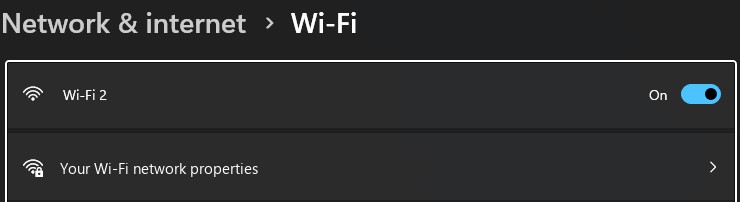
Settings → Network & internet → Wi-Fi, then your network's properties.
Choose Private network
Under Network profile type, pick Private network. The change applies at once.
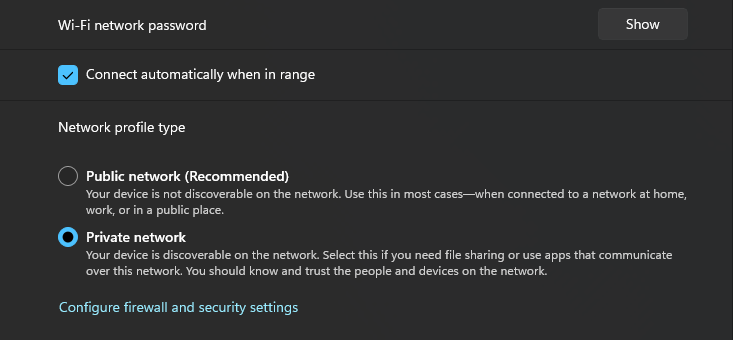
Private network is the one that lets your phone reach apps on this PC.
Check again in ShiftPane
Back in the desktop app, press Check again if the Devices page shows a firewall notice, then scan the QR code again.
The notice on the Devices page has an Open network settings button that takes you straight to this page of Settings.
3. Windows Firewall
If the firewall would block phones from reaching the PC, the Devices page says so and offers Allow through firewall. Windows asks for permission once, and ShiftPane adds a rule for private networks. You can check the firewall yourself:
Open Windows Security
Choose Configure firewall and security settings under the network profile above, or search the Start menu for Windows Security and open Firewall & network protection. The network you're on is marked (active).
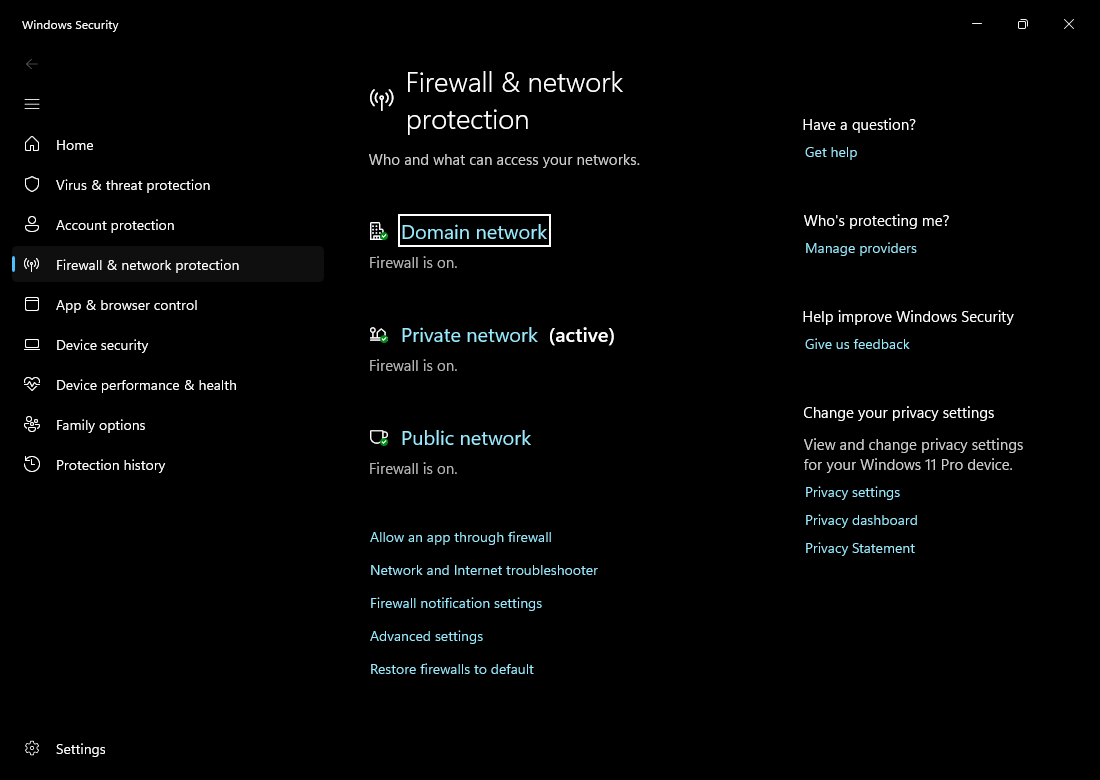
Windows Security → Firewall & network protection. The active network should be Private network.
Open the active network and make sure incoming connections are allowed
Click the active network. Blocks all incoming connections, including those in the list of allowed apps has to be unticked, or no phone can reach the PC whatever rule ShiftPane adds.
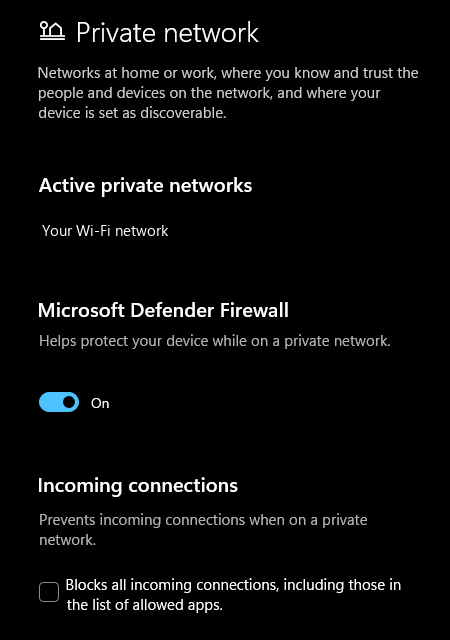
Leave Blocks all incoming connections unticked.
On a work or school PC an administrator may manage the firewall. ShiftPane says so, and the fix is for them to allow incoming TCP on the port shown under the QR code.
4. The right adapter
With a VPN, WSL or VirtualBox, the QR code may name the wrong address. Pick your Wi-Fi or Ethernet adapter from the Network menu under the QR code, and scan again.
5. The certificate
The first time, the browser warns about the PC's certificate. That's expected: accept it once.
The code is refused
Codes change every ten minutes, and each pairs one phone. After five wrong tries the PC stops taking codes until the next one: press New code on the Devices page.
No monitor appears
- Windows: Virtual Display Driver has to be installed, once. See Install ShiftPane.
- The split. On the Widgets split there's no monitor at all. Pick another split on the phone or on the Phone layout page.
A widget says "Waiting for the PC"
The widget has no data yet. PC stats come from the native helper; if it isn't running, the board has nothing to show. Restart the desktop app.
Still stuck
Open an issue on GitHub with your OS, your phone, and what you see.